

Help Center Answer Questions
How do I publish my products to Shopify?
2026-10-02 02:35:43
1957
Enter the Dashboard, select the designed product in "In-station Design" in "My Design" and click "Publish. "
After selecting the store, go to "Publish to store" to edit the export information.

Step one:
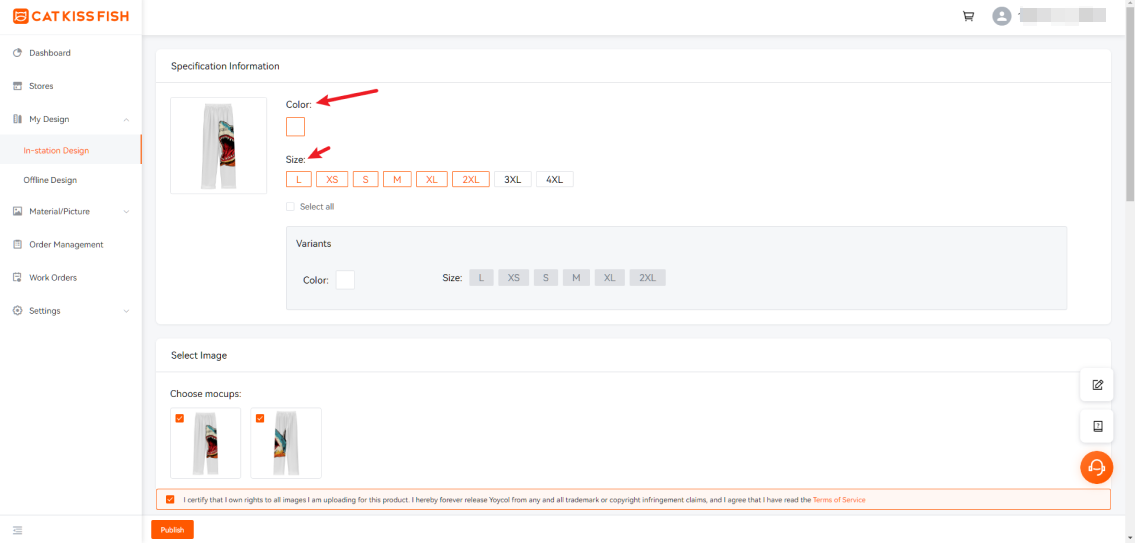
Choose the color, size specification of remittance.
Step two.
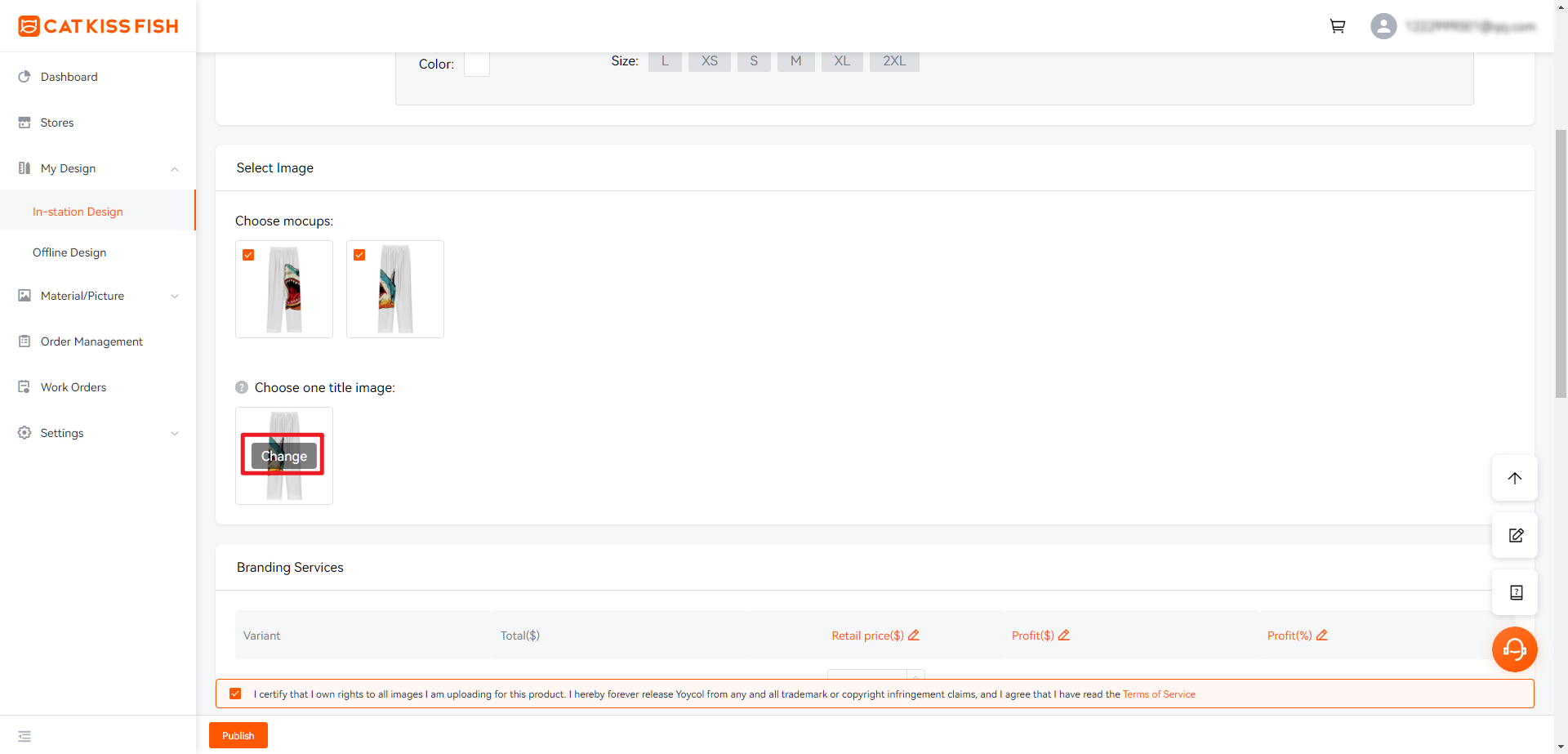
1. Select the effect of the display.

2. Select the cover: stand-alone has been selected in the cover "Change", the expansion of all the effects of the picture has been selected, click on one of the pictures in the "Change", the cover has been selected.

Step three:
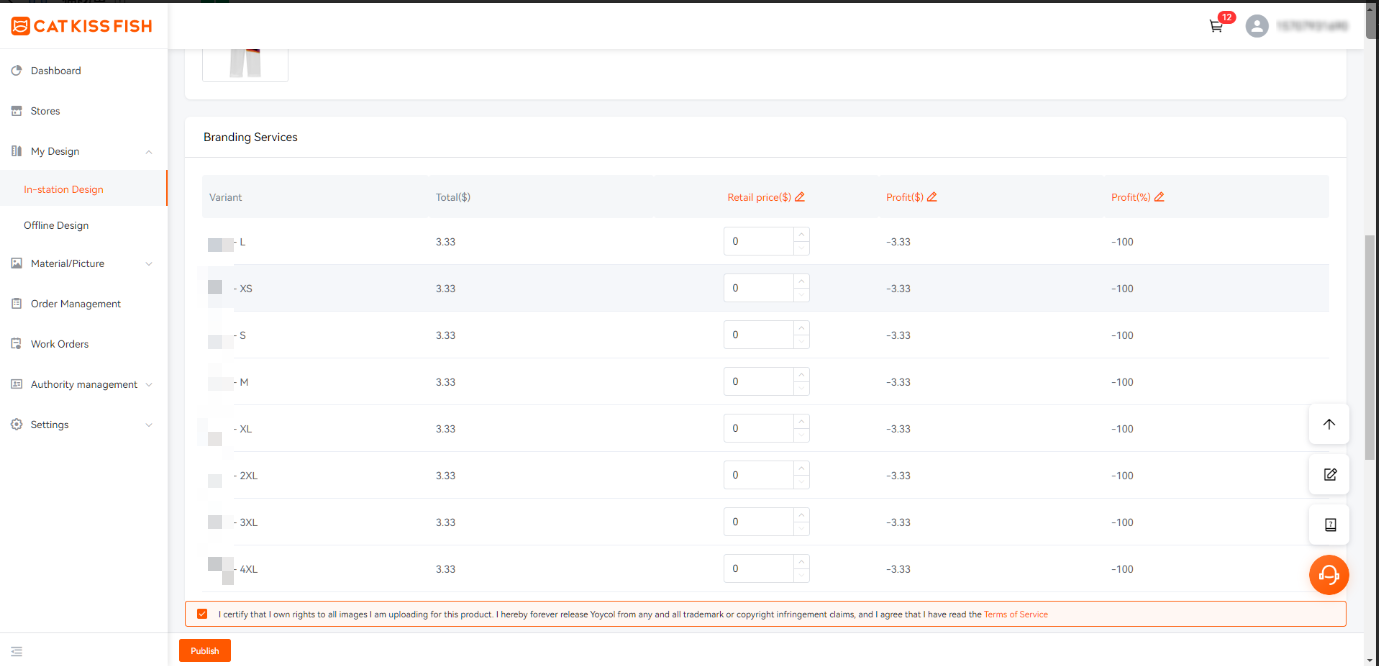
Select the published price of the product and the system will automatically calculate "Profit $", "Profit %".
The "Total($)" in the table is the price of the product on the platform.
Tips:
Selling Price X Profit Margin = Profit
Profit ÷ Cost = Profit margin
Item price + (item price * profit margin) = item selling price
The "Retail price($)", "Profit($)", "Profit(%)" in the header of the table can be edited by clicking on it, and the associated The system will automatically calculate the associated data.
Step 3
1. Fill in the name of the published product.
2. Product description, the system will automatically pull the platform to the product details of the information, you can also edit their own.
3. Product publication or draft: select "Active" and click "Publish" to publish successfully, and it will be published in Shopify; select "Draft" and it will be draft in third-party stores. After selecting "Draft", the product will be in draft status in third-party stores.
4. Add a product line, you can select or multi-select a product line after you have added a product line in Shopify.
Finally, click "Publish" to successfully publish.
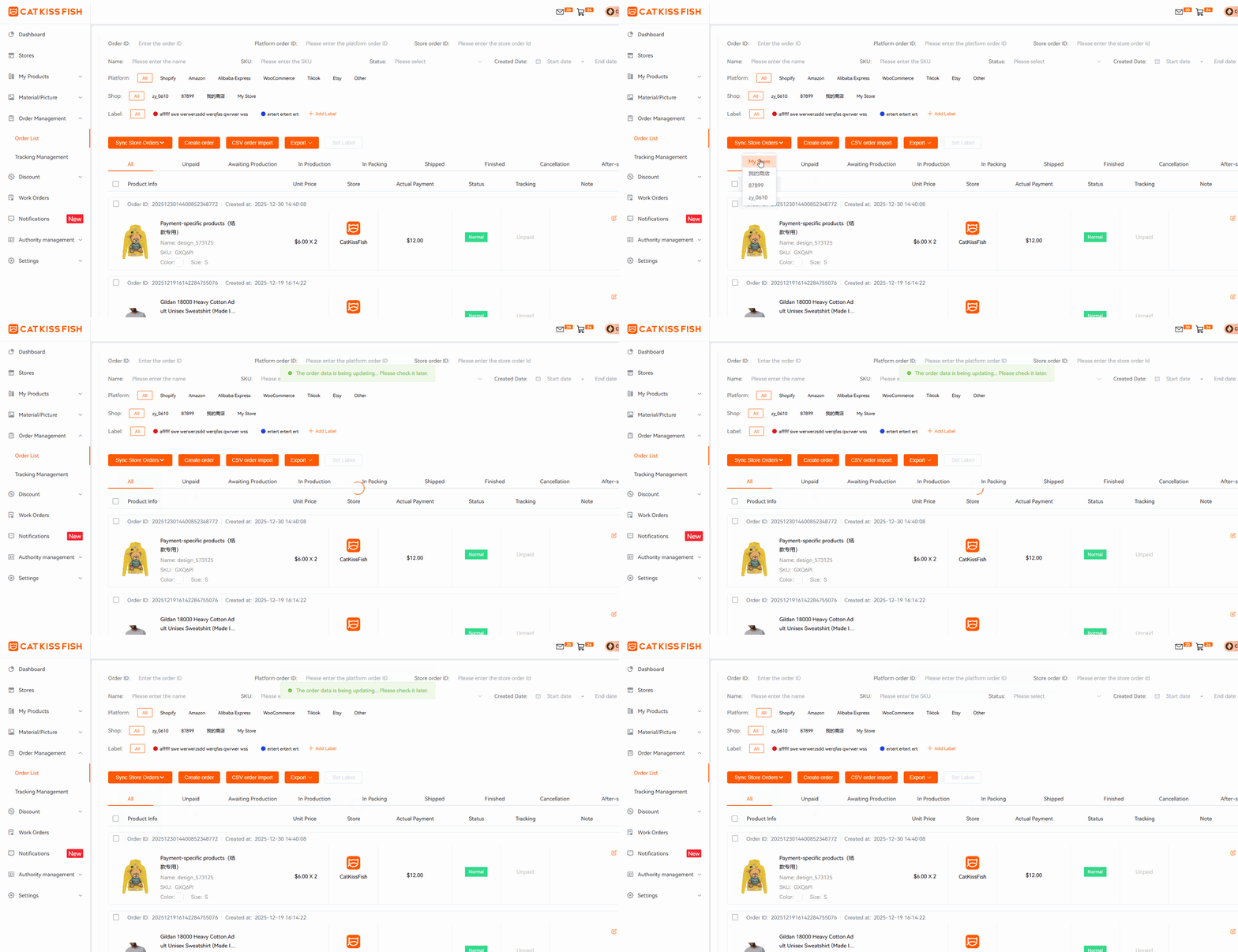
Synchronize order operations:
Still need help?
Click on the bottom right corner to contact us now and fill in your e-mail address to subscribe to us now!
Experience print-on-demand with Cat Kiss Fish in just six steps!
Create an account
Sign up and enjoy the free designer and tons of clips immediately!
Design Products
There are various design modes in the design, custom material, color editor, free gallery, material categorization.
Affiliated stores release products
Simply connect with your store and we can co-supply a steady stream of stock to sell your designs to consumers!
Order synchronization
After placing an order with CatKissFish, you can be updated on the status of your order in real time to keep track of the delivery progress.
Factory production
We have a large supply chain to provide you with goods security in production orders, commitment to the fastest production for you!
Logistics worldwide one piece shipment
We have more logistics providers to cooperate with, so that your goods will be delivered to you in the shortest possible time!
Find out more
Discover CATKISSFISH's complementary services and unique culture!
You may also like

Customers can participate in the whole process of product design and manufacturing, to meet the personalized needs of the one-stop design platform.
Copyright © 2026 CatKissFish ICP No.2021011063-1

$240 OFF
For New
Work Orders
Help center